Interface
Razdor screens follow the original’s layout: the map takes most of the screen, and you control the game through the bottom bar buttons and the windows.
Bottom bar
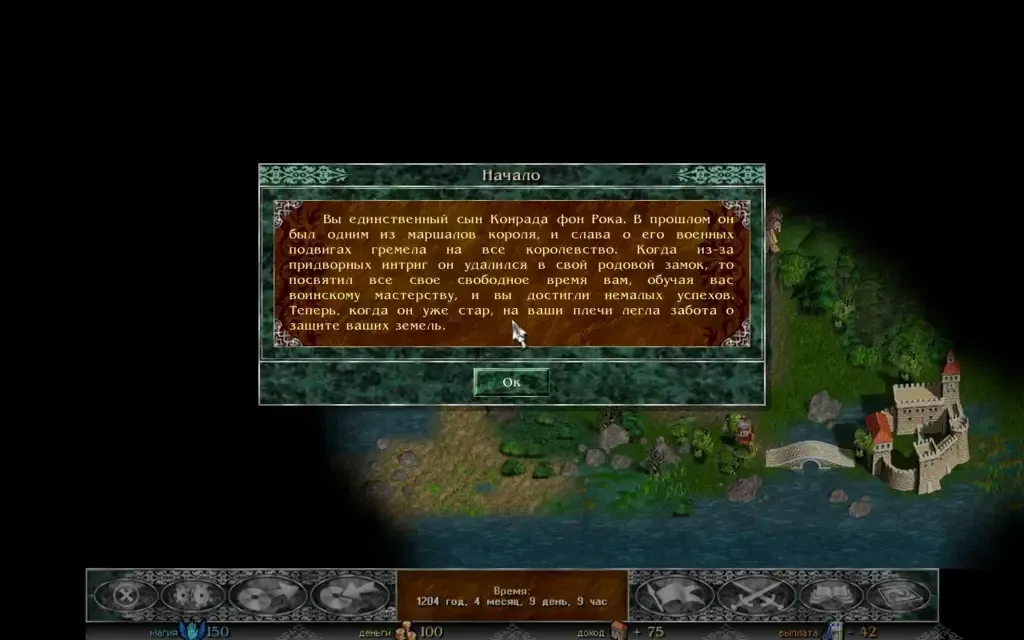
Section titled “Bottom bar”The bar buttons are oval, as in the original, and their colour shows their state:
- Blue — normal buttons.
- Grey — while any window is open.
- Green — the screen of this button is open.
- Orange — while the minimap is shown.
From left to right: the menu (“Main menu (Esc)”), “Sound settings”, save, load. On the right: the journal (flag button, opens the hero’s diary), hero and army, spell book and map. The time panel is in the middle, and below it are mana, gold, income and pay.
Minimap
Section titled “Minimap”The minimap is a window with the whole scenario map scaled down. Explored cells show their terrain colour, unexplored cells are black. Towns and places show small icons, armies and the hero show as shields, and a light rectangle marks the part of the map on screen.
Open it with the “Map of the scenario (M)” button on the bottom bar (the button turns orange while the minimap is open) or with the M key. The M key closes it too, and Esc closes it before the game menu.
By default it sits in the top right corner. Drag it by its frame to any other corner; drag an edge to change its size.
In the settings, on the “Map” tab:
- “Minimap corner” moves it to the next corner (clockwise);
- “Minimap size and place” with the “Reset” button returns its size and place to the default;
- “Minimap army list” shows the list of armies beside the map.
In the 2.5D, third-person and first-person views a translucent wedge replaces the light rectangle: it shows the ground the camera sees. A triangle on the hero’s place shows where the camera looks.
Hero window and diary
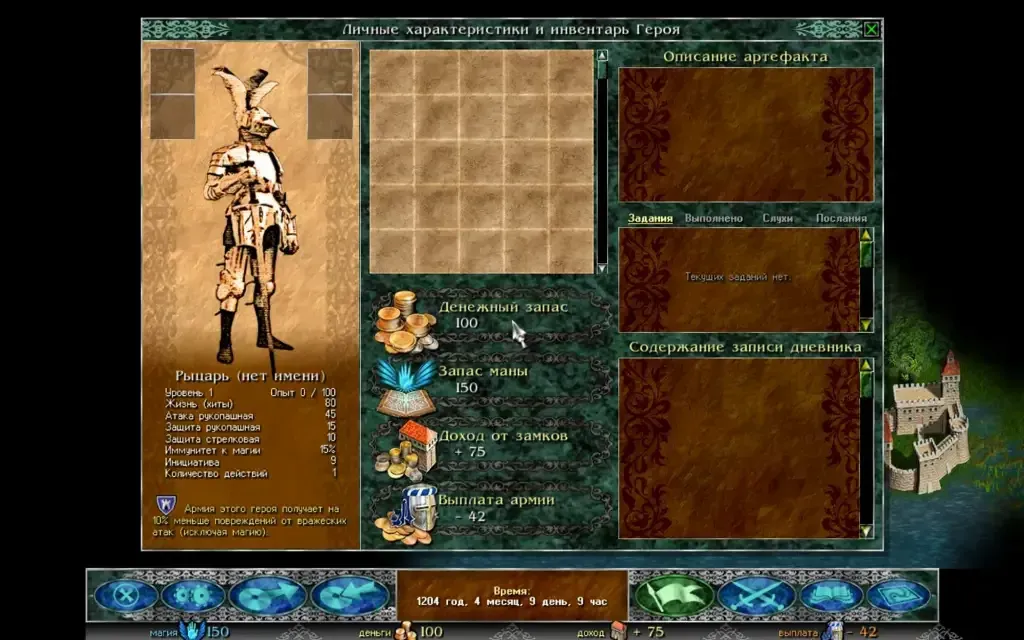
Section titled “Hero window and diary”The hero and army window opens with the “Hero and army” button on the bar or the A key. The hero’s diary opens with the flag on the bottom bar or the J key.
The diary has five tabs:
- “Quests” — current quests, as in the original.
- “Done”, “Rumours” and “Messages” — the Razdor history with the game date. New entries are on top, and the story messages of scripted events go to “Messages”. This is a Razdor addition: the original’s diary lists only the current quests.
- “Chronicle” — entries by day of what the player saw and did: events, battles, hiring, quests. The “Summary” button at the top of the list opens a page with the hero’s route and the totals (more).
To read an entry in full, select it.
Spell book
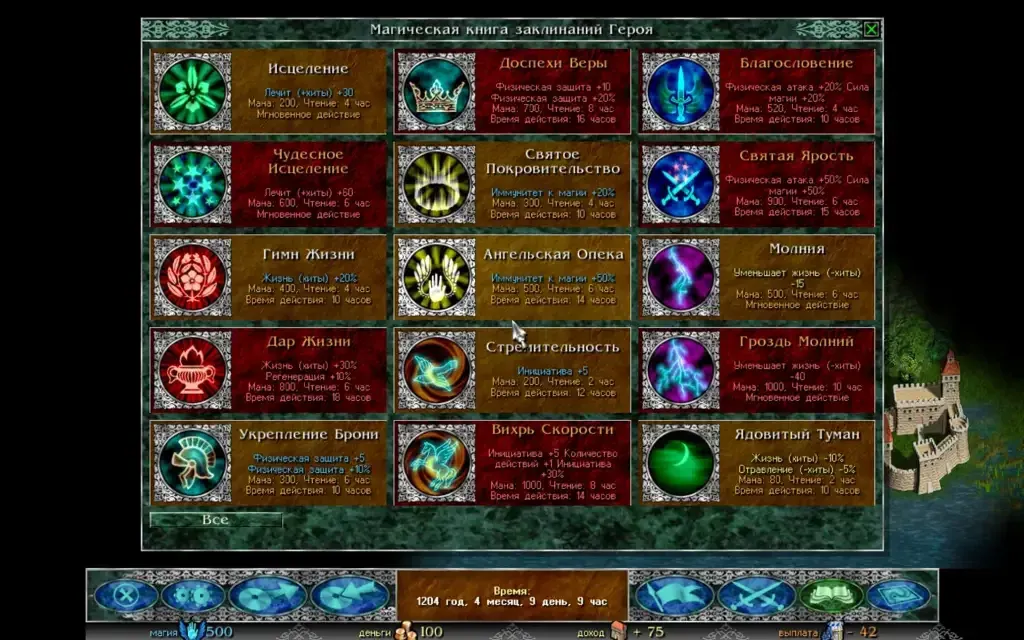
Section titled “Spell book”The book opens with the “The spell book” button on the bar or the B key. It holds up to 15 spells. Spells are learned for gold in the Sanctuary (the “Sanctuary” tab in towns and temples).
For each spell you see:
- its cost in mana;
- the time needed to cast it;
- its duration;
- its effect.
Battle screen
Section titled “Battle screen”A battle opens over the map. The title of the window names both armies.
- Your formation is at the bottom of the window, the enemy formation at the top.
- Unit cards show a portrait and a stats strip:
A(attack),D(defence),Ini(initiative),Mnvr(number of actions),Hits(hit points),Pwr(power of mages). - A tooltip on hover shows the action in advance, for example “Click to curse: Initiative: -5”.
- Empty cells show swords (front row), a bow (back row) or a tent (reserve).
The card of the unit that moves is outlined in green. Cells it can step to are highlighted in blue, and its targets in red (green under the mouse) or blue.