
Updates
How Updates Work
Section titled “How Updates Work”Every time Razdor launches, it checks for new releases on GitHub in a separate thread. The engine does not wait for a response from the server, so the process does not interfere with gameplay. If no new version is found, no notifications will appear.
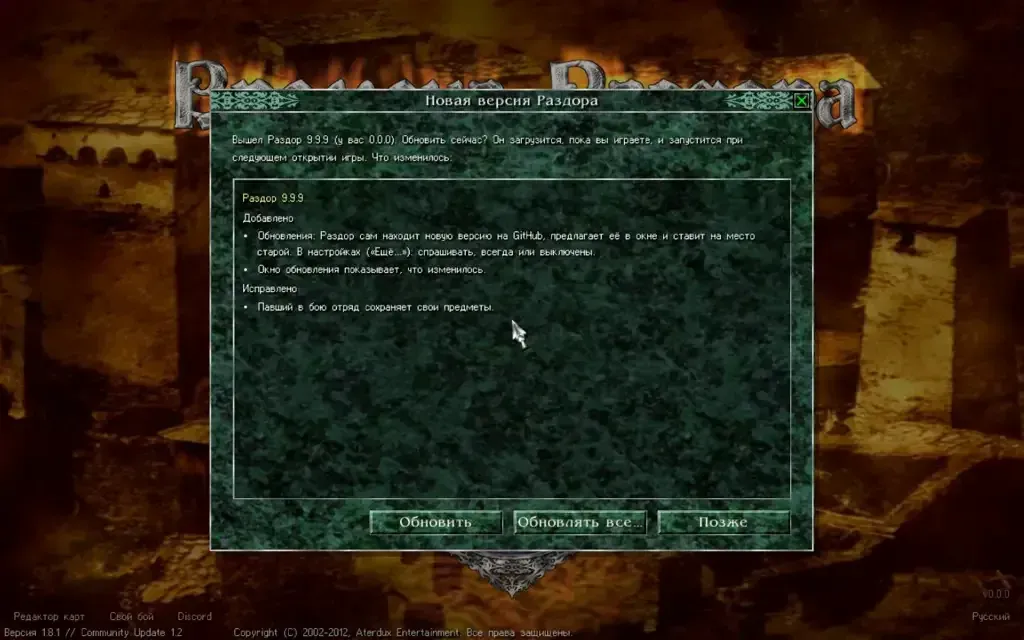
If an update is available, the game will display a special window. This window will only appear during a “quiet moment”:
- on the title screen;
- in the “Settings” menu;
- on the map, when no other windows are open.
The window displays information about the changes relative to your current version. You can click the “Update” button to begin the download. The process occurs in the background while you play. After downloading, the engine verifies the files against SHA256SUMS and replaces old files with new ones. The new version will only take effect after the next launch. A “Restart” button may also appear on the title screen.
Update Settings
Section titled “Update Settings”You can change the system behavior via the “Settings” → “Other” tab → “Updates” menu.
Available modes:
- “Ask” — the default mode. A window appears prompting you to update.
- “Always” — updates are checked and downloaded without showing a window. Selecting the “Always Update” option within the notification window itself will also switch the setting to this mode.
- “Disabled” — automatic checking is turned off.
There is also a “Check” button to manually trigger a search for a new version.
On phones (Android and iPhone) there are only “Ask” and “Disabled”: Android’s installer asks before it installs anyway, and on iPhone an update opens the release page. The “Updates” row and the “Check” button are the same as on the computer.
Manual Checking (for Developers)
Section titled “Manual Checking (for Developers)”If you run a build via cargo, the engine will not check for updates.
To test the update process using real releases, you can use the RAZDOR_UPDATE_AS environment variable. If you set its value to, for example, RAZDOR_UPDATE_AS=0.3.0, the engine will assume the current version is 0.3.0 and will be able to find newer releases on GitHub.