Map Editor
Razdor includes a built-in scenario editor that allows you to create .DTm format maps. These maps are compatible with both the original game and the Razdor engine.
Launching the Editor
Section titled “Launching the Editor”There are two ways to launch the editor:
The game’s menu has no editor button yet: the editor is not ready. Start it by launching the game with the --editor flag (for example Razdor-<version>.exe --editor on Windows or ./razdor-<version>-linux --editor on Linux).
Basic Tools
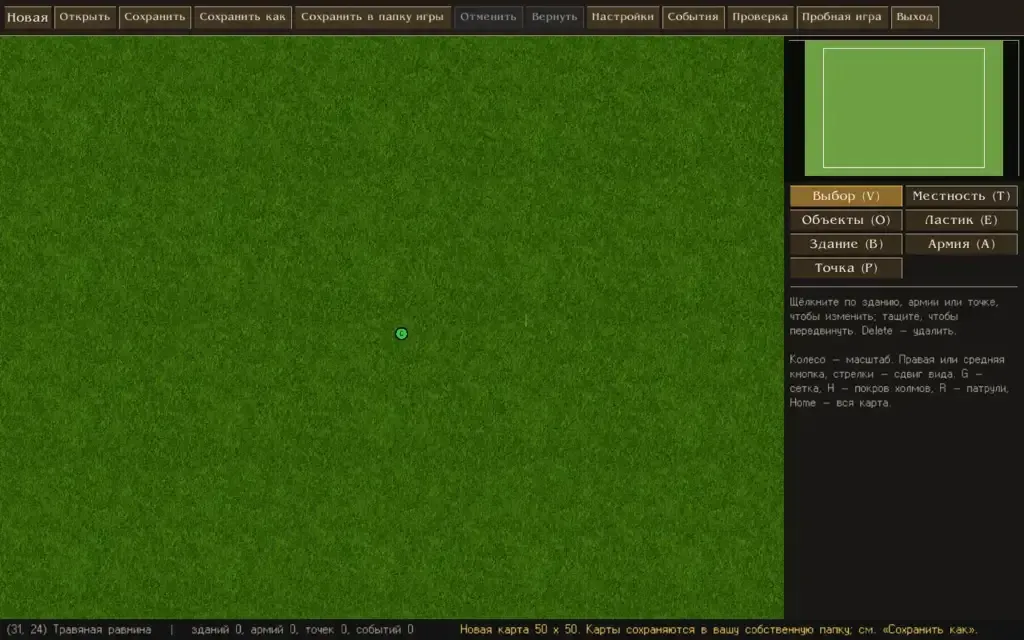
Section titled “Basic Tools”Editing tools are located in the right column. For convenience, you can use hotkeys:
- “Select and Move” (
V): standard operation mode. - “Terrain” (
T): allows you to work with 16 types of surfaces. Brush modes (size 1/3/5/9), fill, and rectangle drawing are available. - “Objects” (
O): placement of hills, mountains, rocks, and trees. Multiple objects can be placed on a single tile. - “Eraser” (
E): removing objects. - “Building” (
B): placing buildings. The tile you click will become the bottom-right corner of the building. If the building does not fit, the preview will be red. - “Army” (
A): creating armies. - “Point” (
P): placing lanterns or event points.
Toolbar and Controls
Section titled “Toolbar and Controls”The top panel contains the main commands for file management and settings:
- “New”: create a new map (you can choose a size: 50/100/200 or set your own).
- “Open”: load game maps, your own maps, or specify a file path.
- “Save” (
Ctrl+S) and “Save As” (Ctrl+Shift+S). - “Settings”: here you can set the name, description, starting date, victory/defeat conditions, the hero’s three beginnings, faction relations, campaign parameters, and named characters.
- “Check”: error list. If there are errors in the list, you will not be able to save the map. Clicking on an error line will take you to the problematic area.
- “Playtest”: launch the map in game mode. To return to the editor, press
Escand select “Main menu”.
Map Search
Section titled “Map Search”The search function (Ctrl+F) opens a window in the top right corner. It allows you to find:
- Buildings (by name, number, type, owner, garrison, etc.);
- Armies (by name, number, leader, troops, or items);
- Points and Events (by number, name, or message text);
- Objects and Hero Beginnings (by class).
To search for a specific number, use the # prefix (e.g., #10). Press F3 to jump to the next result.
Saving Maps
Section titled “Saving Maps”The editor automatically determines where to write the file. By default, maps are saved to your user map folder, to RAZDOR_MAPS_DIR, or to ~/.local/share/razdor/maps.
- Maps opened from the game folder (
Maps_Rus) will never overwrite the original game files when saved. - The “Save to game folder” button allows you to write changes directly to
Maps_Rus, but only after your confirmation. If you attempt to replace an existing shipped map, the editor will ask for confirmation a second time.